Free download e-book "Beginning ASP.NET for Visual Studio 2015".
Click on link below:
Download Link
Showing posts with label Technology. Show all posts
Showing posts with label Technology. Show all posts
Cara Install dan Membuat Tabel di Database Oracle Step by Step
Ohapagiii~ (^O^)/ Masih semangat belajar?
Kalau kemarin-kemarin kita udah belajar cara bikin tabel di database MySQL, PostgreSQL, SQL Server, sekarang kita belajar gimana caranya bikin tabel di Oracle.
Pertama kita download dulu database nya di sini.
Oh ya sebelum bisa download, temen-temen harus udah punya akun Oracle dulu, tinggal daftar aja, gratis.
Abis itu temen-temen pilih database Oracle nya mau download yang mana, sesuaikan dengan PC temen-temen apakah Windows 32bit, 64bit, atau Linux.

Kalau udah didownload, jalankan file setup.exe.


Pilih "I accept the terms in the license agreement", lalu Next.


Okeee, tahap installasi sudah selesai, sekarang mikirin gimana caranya bikin tabel.
Biar gampang, kita pakai aplikasi SQL Developer.
Temen-temen bisa download di sini.
Sebelum bisa pakai aplikasi ini, PC temen-temen harus udah terinstall JDK dulu.
Kalau JDKnya udah terinstall di PC temen-temen, pilih SQL Developer yang "Windows 32-bit/64-bit", terus Download.


Nah begini interfacenya.


Kalau kemarin-kemarin kita udah belajar cara bikin tabel di database MySQL, PostgreSQL, SQL Server, sekarang kita belajar gimana caranya bikin tabel di Oracle.
Pertama kita download dulu database nya di sini.
Oh ya sebelum bisa download, temen-temen harus udah punya akun Oracle dulu, tinggal daftar aja, gratis.
Abis itu temen-temen pilih database Oracle nya mau download yang mana, sesuaikan dengan PC temen-temen apakah Windows 32bit, 64bit, atau Linux.

Kalau udah didownload, jalankan file setup.exe.

Akan muncul prompt yang menandakan bahwa Installer sedang melakukan preparing.

Klik next.

Pilih "I accept the terms in the license agreement", lalu Next.

Ini menunjukkan di direktori mana database Oracle akan diinstall, pilih Next.

Masukkan password yang nantinya akan temen-temen pakai buat koneksi ke database.
Password ini digunakan untuk user: SYSTEM

Pilih Install.

Tunggu sampai proses install selesai. Proses ini akan 'memakan' waktu agak lama. Jadi mohon bersabar. (^_^)/

Jika sudah selesai, pilih Finish.

Okeee, tahap installasi sudah selesai, sekarang mikirin gimana caranya bikin tabel.
Biar gampang, kita pakai aplikasi SQL Developer.
Temen-temen bisa download di sini.
Sebelum bisa pakai aplikasi ini, PC temen-temen harus udah terinstall JDK dulu.
Kalau JDKnya udah terinstall di PC temen-temen, pilih SQL Developer yang "Windows 32-bit/64-bit", terus Download.

Abis didownload, pilih sqldeveloper.exe


Nah begini interfacenya.

Pertama kita buat databasenya dulu, di kolom Connections, pilih New Connection.

Connection Name adalah nama database yang mau kita buat.
Aku namain "perpustakaan".
Username nya secara default adalah "system".
Passwordnya adalah password yang kita bikin waktu proses installasi.
Lalu pilih button "Connect".

Sekarang kita cek di Connection, database perpustakaan udah created.

Kalau kita klik tables, maka di sana udah created tables bawaan Oracle nya sendiri.

Tahap selanjutnya adalah bikin table bikinan kita sendiri, klik kanan Tables, lalu pilih New Table.

Name adalah nama table nya. Isikan sesuai yang di gambar ya.
Oh ya sekedar informasi, kalau di Oracle tuh gak ada Varchar, adanya Varchar2.
Soal ini kapan-kapan kita bahas ya. :)


Oke, kita dah selesai bikin table, dan ini hasilnya.

Sekarang kita mau isi table nya. Klik tab "Data", lalu Insert Row.


Sekarang kita udah berhasil masukkin data. Selamat mencoba dan semangat belajar. (^O^)/

Displaying Crystal Report in Visual Studio using C# and SQL Server Express Step by Step
Displaying Crystal Report in Visual Studio using C# and SQL Server Express Step by Step, it works!
Video Link
Video Link
Installing SQL Server 2008 Express Tutorial Step by Step with Pictures
How's your effort for learning right now? (^O^)/
We are going to take a 'class' how to install SQL Server 2008 Express in our PC.
As always, we must have an installer, it can be found here and downloaded based on your PC's specifications.
After downloading it, execute the.exe file.
Just following the pictures below... ^_^
In some of OS, you will find such following dialog box:

Just select "Run the program without getting help".

I assume this is our first installation. Select "New SQL Server stand-alone installation or add features to an existing installation".


It doesn't need product key due to free edition


Select all the features
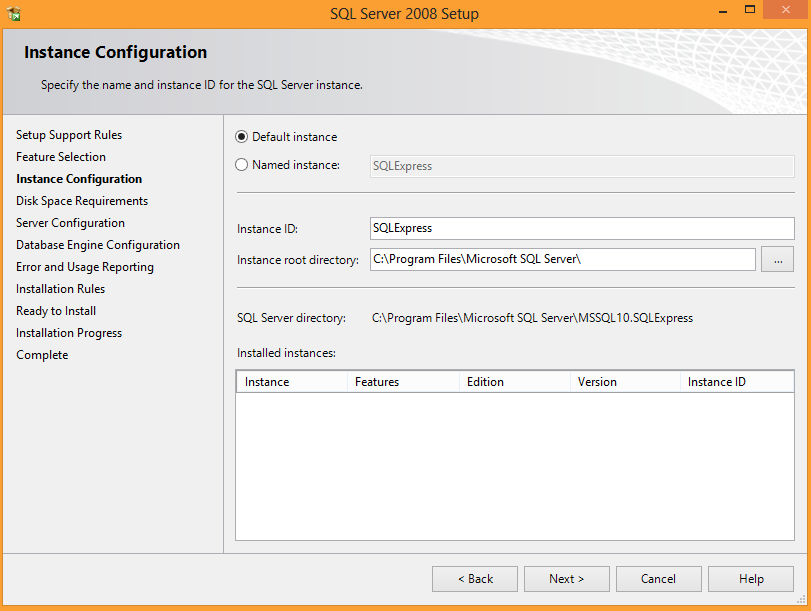
Select Default Instance, then Next


Select Mixed Mode, then you must create your password then "Add Current User"


Happy learning and practicing!!! (^O^)/
Download Tutorial Framework Laravel Step by Step Gratis!!!
Download gratis e-book tutorial Laravel Step by Step jelas disertai gambar.
Klik di sini untuk download.
Klik di sini untuk download.
Comparing Two Rows in One Table Postgresql
This article explain about SQL query which will compare two rows in one table PostgreSQL.
I wonder if the query can be implemented in another database, but it's just usual query I think, so it's possible to be implemented in another database such as MySQL, Oracle, SQL Server, and many more.
I assume you have had ability for installing Postgresql Database, creating database and table, and inserting the values.
Let us assume we have database named "comparing" (without quotes).
Create table named "table1" with the following columns.

Insert record as below:

We want to select single record of two duplicate value in "col1" column.
The single record which will be selected is the record which has the highest value in "col2" column for each duplicate "col1" column.
Below is query how to compare two rows in one table.
SELECT * FROM table1 t1 WHERE t1.col2 = (SELECT MAX(t2.col2) FROM table1 t2 WHERE t1.col1 = t2.col1 GROUP BY col1);
The result:

Query explanation:
SELECT * FROM table1 t1
Select all column with record in table1 {col1, col2, col3, col4) then we assign alias table name called "t1" (without quotes).
WHERE t1.col2=
Limit the record displayed based on rule on "col2' column (without quotes) which will be created afterward.
(SELECT MAX(t2.col2) FROM table1 t2 WHERE t1.col1 = t2.col1 GROUP BY col1);
This is the rules affected from "col2" column (without quotes).
We will select all columns in table1 which have maximum value in "col2" column (without quotes) from table1.
We assign alias table name called "t2" (without quotes).
I wonder if the query can be implemented in another database, but it's just usual query I think, so it's possible to be implemented in another database such as MySQL, Oracle, SQL Server, and many more.
I assume you have had ability for installing Postgresql Database, creating database and table, and inserting the values.
Let us assume we have database named "comparing" (without quotes).
Create table named "table1" with the following columns.
Insert record as below:
We want to select single record of two duplicate value in "col1" column.
The single record which will be selected is the record which has the highest value in "col2" column for each duplicate "col1" column.
Below is query how to compare two rows in one table.
SELECT * FROM table1 t1 WHERE t1.col2 = (SELECT MAX(t2.col2) FROM table1 t2 WHERE t1.col1 = t2.col1 GROUP BY col1);
The result:
Query explanation:
SELECT * FROM table1 t1
Select all column with record in table1 {col1, col2, col3, col4) then we assign alias table name called "t1" (without quotes).
WHERE t1.col2=
Limit the record displayed based on rule on "col2' column (without quotes) which will be created afterward.
(SELECT MAX(t2.col2) FROM table1 t2 WHERE t1.col1 = t2.col1 GROUP BY col1);
This is the rules affected from "col2" column (without quotes).
We will select all columns in table1 which have maximum value in "col2" column (without quotes) from table1.
We assign alias table name called "t2" (without quotes).
Download Software POS/ Kasir/ Inventory Gratis!!!
Assalamu'alaikum Momo lovers! :)
Gomen ne, baru posting lagi, baru sempat, bukan baru sempat, baru niat sih! :D
Aku mau share software POS (Point of Sale)/Kasir, dilengkapi dengan scan barcode penjualan dan create barcode.
Sistem ini gak aku perjual belikan, kamu bebas pakai. :)
Sistem ini dibuat dengan bahasa PHP vesi 5.2.9, database nya menggunakan PostgreSQL.
Pertama yang harus kamu lakukan adalah download XAMPP, yang mana di dalam nya sudah bundled server Apache, PHP, dan lain-lain. XAMPP nya pakai yang versi 1.7.1 ya soalnya kalau beda versi nanti PHPnya beda versi juga, dan akan berakibat beberapa error pada sistem.
Bisa aja sih pakai PHP versi lebih atas, tapi nanti teman-teman harus mengganti beberapa script nya.
Setelah download dan install XAMPP, lalu download database PostgreSQLnya di sini.
Udah beres download dan install PostgreSQLnya, silahkan download software POS/Kasir di sini.
Software ini dilengkapi dengan sistem inventory FIFO di mana ketika barang dalam satu bulan belum habis, maka harus dijual di bulan berikutnya, begitu seterusnya.
Apabila barang di bulan sebelumnya belum habis namun menyimpan stok lagi di bulan yang sama, maka sistem penjualannya tidak akan berfungsi.
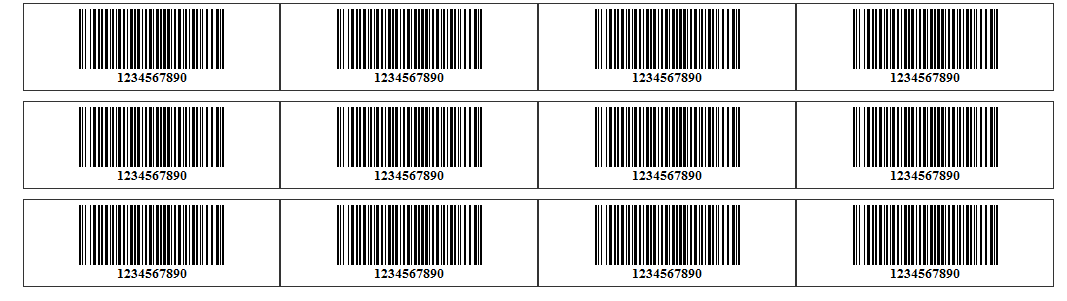
Dilengkapi juga dengan cetak struk dan halaman admin untuk setting store dan colour template, juga bisa generate barcode.
ACCOUNT ADMIN
username: admin
password: admin
ACCOUNT USER
username: momochan
password: momochan
Mudah-mudahan bermanfaat dan silahkan dishare!!! :)
Happy coding all!
Berikut screenshoot software tersebut:


Gomen ne, baru posting lagi, baru sempat, bukan baru sempat, baru niat sih! :D
Aku mau share software POS (Point of Sale)/Kasir, dilengkapi dengan scan barcode penjualan dan create barcode.
Sistem ini gak aku perjual belikan, kamu bebas pakai. :)
Sistem ini dibuat dengan bahasa PHP vesi 5.2.9, database nya menggunakan PostgreSQL.
Pertama yang harus kamu lakukan adalah download XAMPP, yang mana di dalam nya sudah bundled server Apache, PHP, dan lain-lain. XAMPP nya pakai yang versi 1.7.1 ya soalnya kalau beda versi nanti PHPnya beda versi juga, dan akan berakibat beberapa error pada sistem.
Bisa aja sih pakai PHP versi lebih atas, tapi nanti teman-teman harus mengganti beberapa script nya.
Setelah download dan install XAMPP, lalu download database PostgreSQLnya di sini.
Udah beres download dan install PostgreSQLnya, silahkan download software POS/Kasir di sini.
Software ini dilengkapi dengan sistem inventory FIFO di mana ketika barang dalam satu bulan belum habis, maka harus dijual di bulan berikutnya, begitu seterusnya.
Apabila barang di bulan sebelumnya belum habis namun menyimpan stok lagi di bulan yang sama, maka sistem penjualannya tidak akan berfungsi.
Dilengkapi juga dengan cetak struk dan halaman admin untuk setting store dan colour template, juga bisa generate barcode.
ACCOUNT ADMIN
username: admin
password: admin
ACCOUNT USER
username: momochan
password: momochan
Mudah-mudahan bermanfaat dan silahkan dishare!!! :)
Happy coding all!
Berikut screenshoot software tersebut:




Subscribe to:
Posts (Atom)